

Create mystery mosaics
Create mystery mosaics
A mystery mosaic is a grid of coded squares that hides a picture. You color each square to match its code, and the picture appears as you go. ColorBliss builds the puzzle page and a filled solution page from a text idea or from one photo.
What it does
You describe a subject or upload a photo, then pick a difficulty. ColorBliss makes a flat, poster style picture of your subject and lays it onto a grid. Each square gets a code that matches one color in the legend under the grid.
The puzzle page shows the codes. The solution page shows every square filled in, so you can check your work or peek when you get stuck.
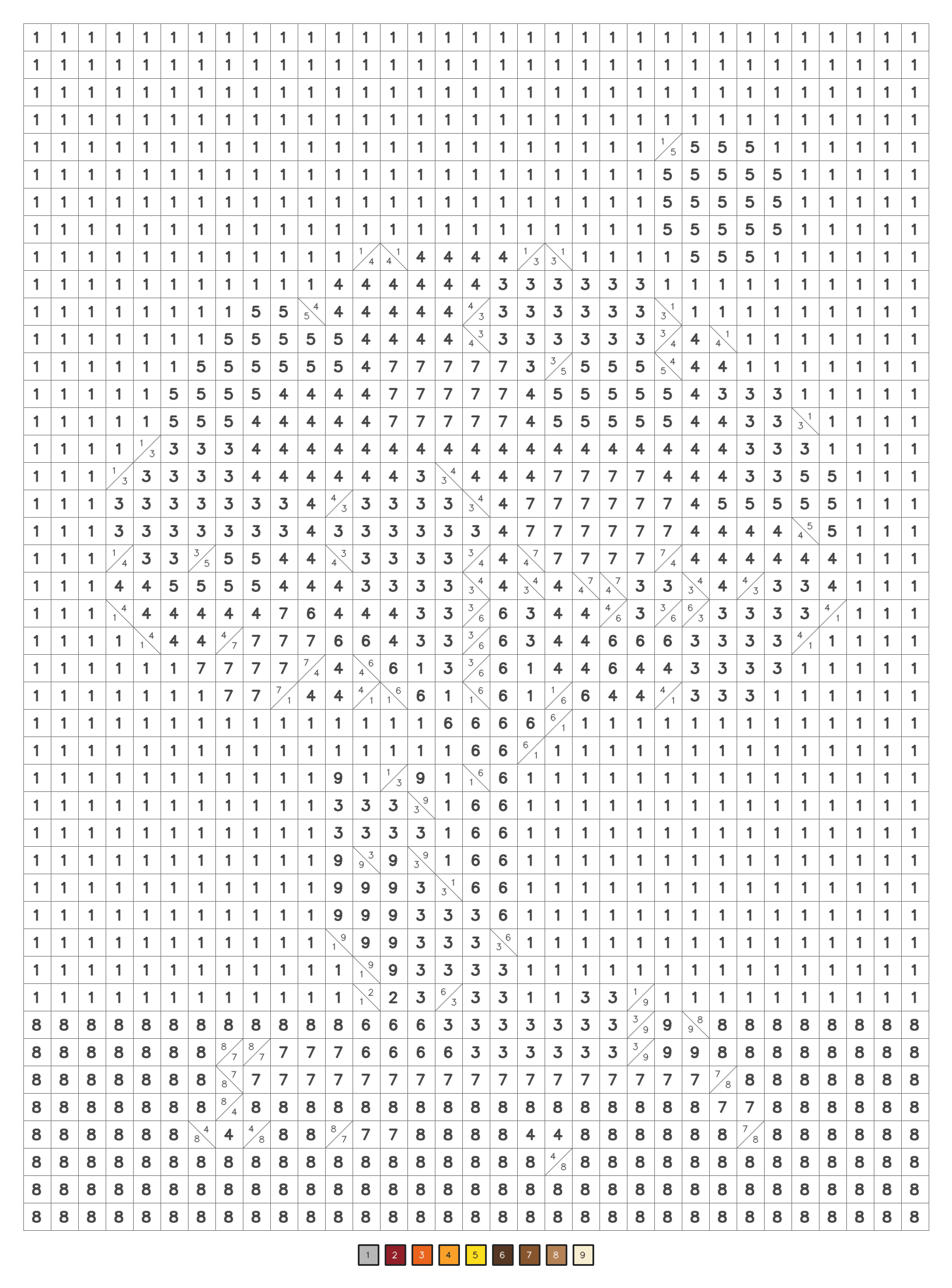
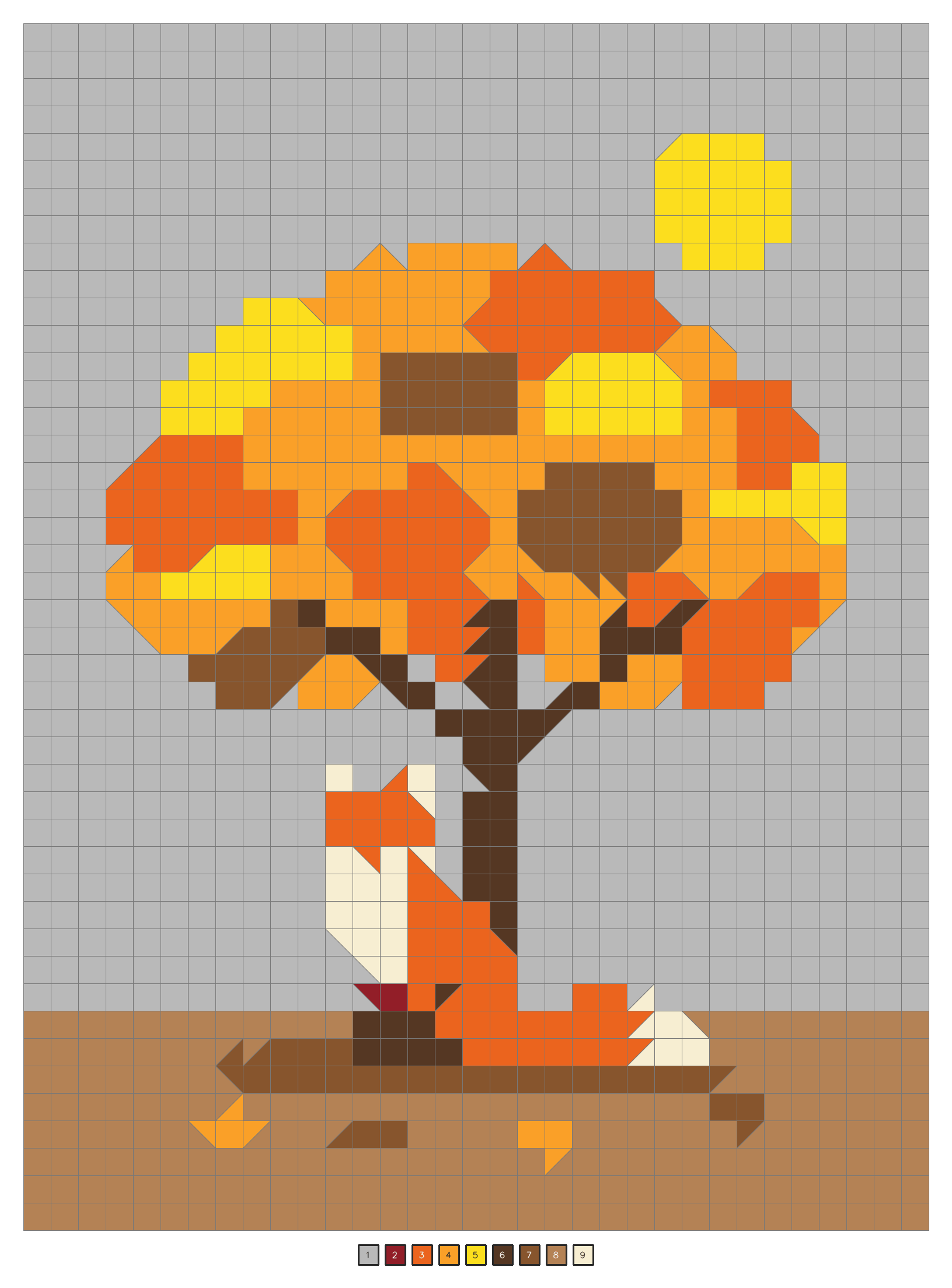
The first image is a classic puzzle page, and the second is its solution, which shows a fox sitting under a fall tree.
A few details make the pages easier to color:
- White squares stay blank. You skip them.
- Codes start at 1 with no gaps. Each page numbers only the colors it uses. After 9 the codes switch to letters, and they skip M, Q, and R because those are easy to mix up.
- Classic and expert pages can split a square on the diagonal. A split square shows two codes, one for each triangle.
- Every difficulty fills the page edge to edge. The picture runs all the way to the border of the grid.
How to use it
- Click Create on your dashboard and open the Mosaic tab.
- Pick a starting point. Choose Describe to type an idea, or From photo to upload one picture.
- Describe what you want, for example "a red fox sitting under a tree." You can also tap an example like Blue whale or Hot air balloon, or click Refresh prompt for a random idea.
- Or upload your photo. JPEG, PNG, WebP, and HEIC photos all work.
- Pick a difficulty (see the table below).
- Choose a folder if you want the mosaic saved somewhere other than your main dashboard.
- Click Create mystery mosaic. It costs 5 credits, whether you start from a prompt or a photo.
- Watch the progress steps. ColorBliss makes the picture, builds the grid, adds the codes, and saves both pages. This usually takes under a minute.
- Download from the page's download menu when it's ready.
Difficulty levels
| Difficulty | Grid | Colors | Cell shapes |
|---|---|---|---|
| Kids | 20 by 27 (540 squares) | Up to 16 | Square cells only |
| Classic | 33 by 44 (1,452 squares) | Up to 16 | Diagonal splits allowed |
| Expert | 55 by 73 (4,015 squares) | Up to 26 | Diagonal splits allowed |
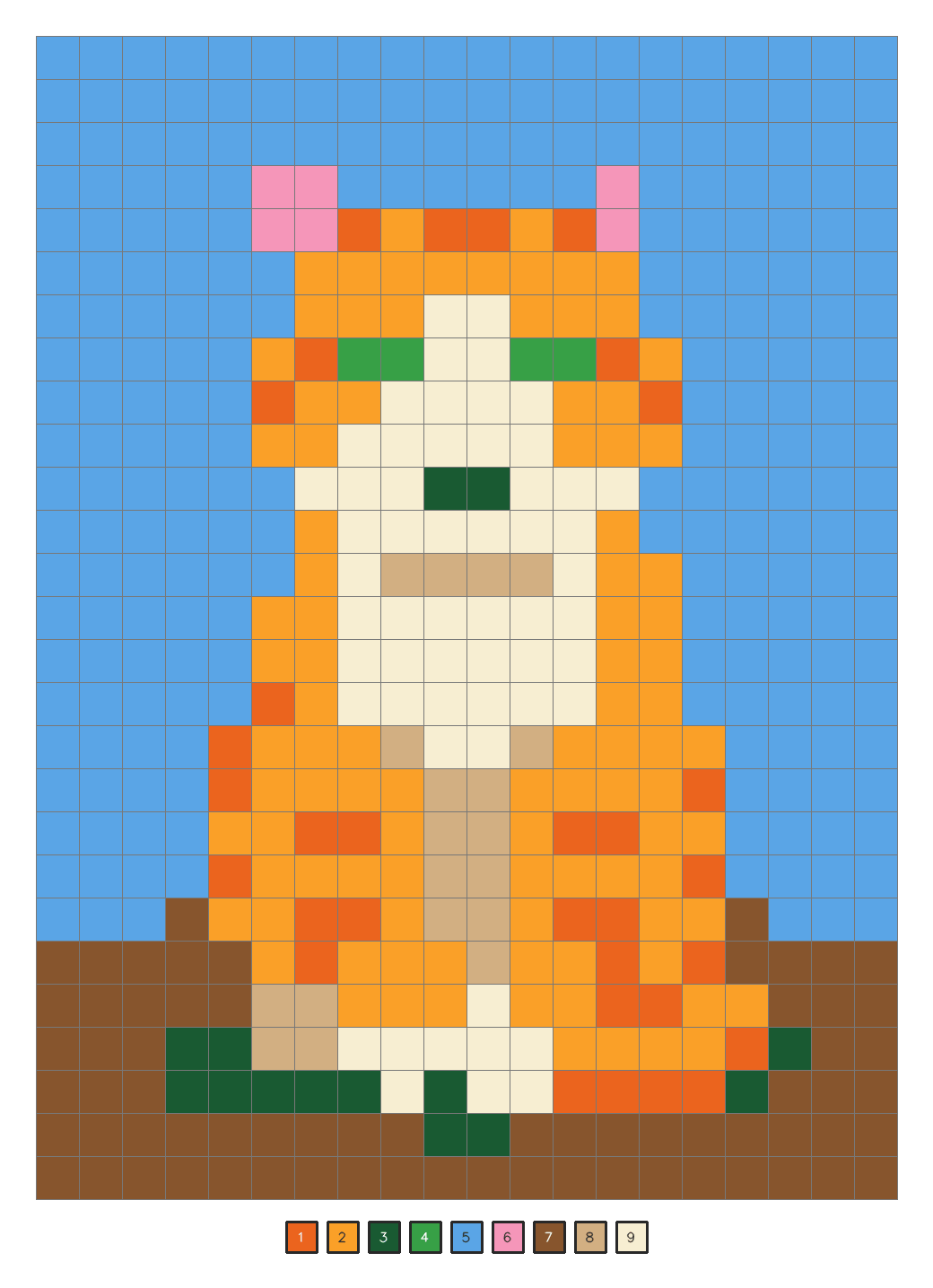
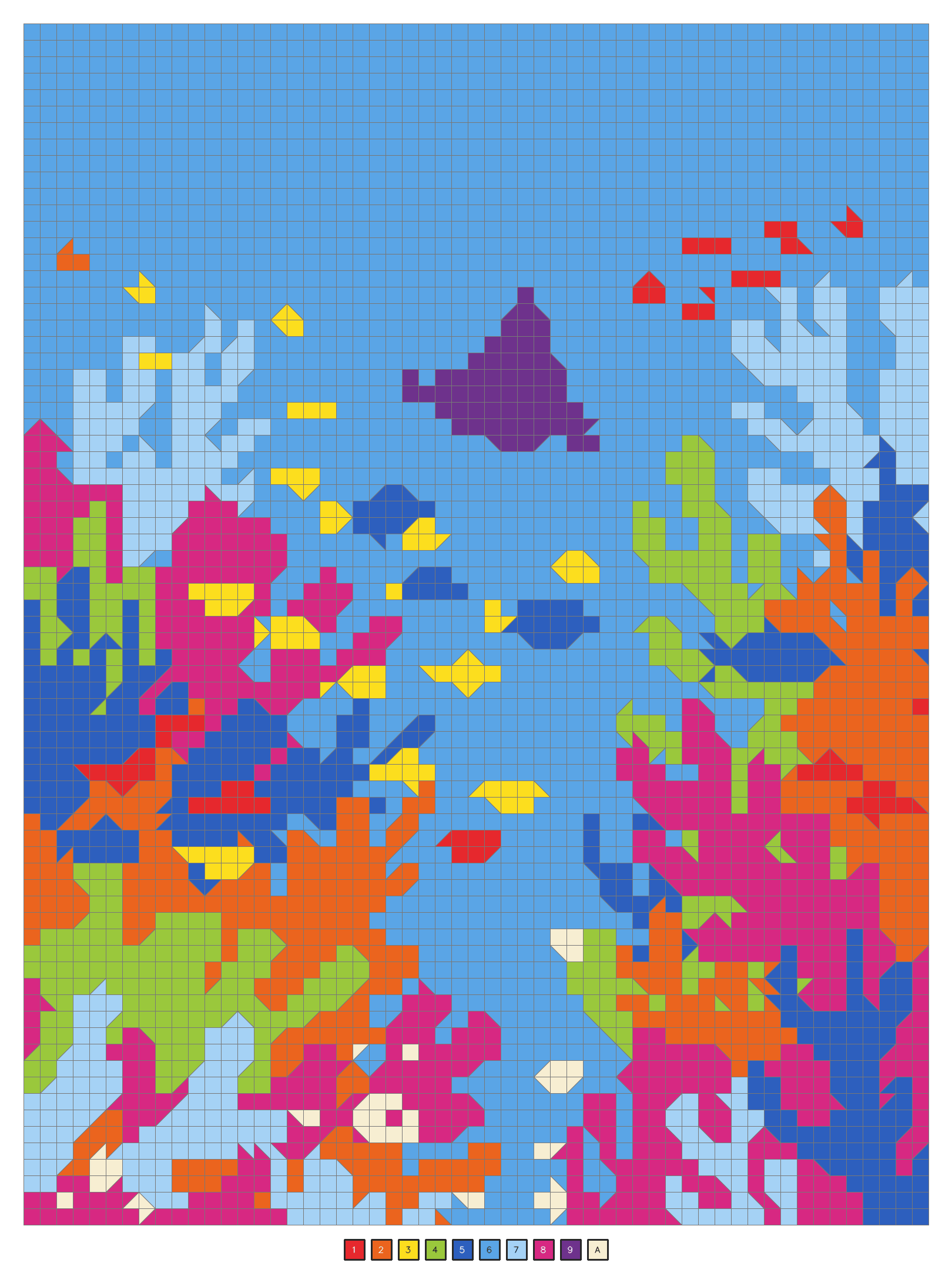
Kids pages use bigger squares and larger numbers, so younger colorers can read them. Expert pages have small squares and the full palette, and they take hours to finish.
Here's how the solution pages compare. The kids cat below uses 9 colors on 540 squares, and the expert coral reef uses 10 colors on 4,015 squares. The fox above is a classic page.
Download options
Open the download menu on a mosaic page to pick a file:
- Download PNG gives you the puzzle page.
- Solution gives you the filled answer page as a PNG.
- Download PDF (puzzle + solution) gives you one file with the puzzle on page one and the answer on page two.
Where it works
You create mosaics from the Mosaic tab in the Create panel on your dashboard.
Finished mosaics show up on your dashboard and in folders like any other page. The card shows the colored solution. Hover over it on desktop to see the coded puzzle.
The Retry button in a mosaic's page details opens the Mosaic tab with the same description and difficulty filled in. You can tweak the wording and run it again.
The Idea gallery includes mosaics too. Click Try this idea on a mosaic card, and ColorBliss opens the Mosaic tab with that idea ready to go.
Common patterns
Classroom early finishers. Teachers print a stack of kids mosaics for students who finish work early. The hidden picture keeps kids going square by square, and the answer page makes checking fast.
A mystery gift. Upload a photo of a pet, a grandchild, or a favorite place and make a classic or expert mosaic. The person coloring doesn't know who or what it is until the picture shows up.
A weekly puzzle. Pick a theme each week, like fall leaves or ocean animals, and print a new mosaic for the family table.
Sharing a finished puzzle. Open a mosaic's page details and click Copy public link. Anyone with the link can see the mosaic without an account.
What it doesn't do
Mosaics don't convert existing coloring pages. Black and white line art has no colors for the grid to sample. Start from a new idea or a photo instead.
Mosaics don't use your photo as is. ColorBliss redraws your photo in flat poster colors first so the grid can still read as your picture. Small details like jewelry or text on a shirt may not survive.
Mosaics don't work in bulk yet. You make them one at a time from the Mosaic tab.
The folder book tool isn't built for mosaics. Books may print pages in grayscale, which washes out the color on solution pages. Download the mosaic PDF instead.
The edit tools aren't made for mosaics. Magic Color, touch up, and the other edit tools are built for black and white line art. To change a mosaic's picture, use Retry with a new description.
Tips
Ask for flat shapes and bold colors. Words like "flat poster colors" and "simple background" give cleaner grids. Soft words like "watercolor" or "misty" blur color regions and make messy puzzles.
Pick one clear subject. A single fox, a rocket, or a sunflower reads better than a busy scene. This matters most on kids pages, where each square covers a big part of the picture.
Use a close, well lit photo. A face or pet that fills most of the frame works best. Busy backgrounds and heavy shadows flatten less cleanly.
Print the PDF when you want the answer handy. Print page one for the colorer and keep page two for checking. The solution page keeps its color.
Check the legend on expert pages. At small sizes, I and 1 or O and 0 can look alike. The legend under the grid shows which codes appear on that page.
Getting help
Email help@colorbliss.com if a mosaic doesn't finish, the solution download is missing, or the codes are hard to read when printed. Include:
- The page link from your dashboard
- The difficulty you picked
- Whether you started from a description or a photo
Next steps
Open Create, click the Mosaic tab, and try a kids mosaic with one of the example ideas. Print it, color a row or two, and see how long it takes you to guess the picture.