

Create consistent characters for your coloring pages
Consistent characters let you turn a photo into a reusable character reference. Once created, you can use that character in any coloring page and they'll look the same every time.
What it does
Upload a photo of a person, pet, or character, and ColorBliss creates a character sheet from it. This sheet captures the key features and proportions so you can generate coloring pages featuring that character with consistent appearance.
Parents use this to create coloring pages starring their kids. Teachers create classroom mascots that appear in educational materials. Artists maintain original characters across their work. The feature works for anyone who wants the same character to appear in multiple coloring pages.
How to create a character
Click Create Character to open the creation dialog
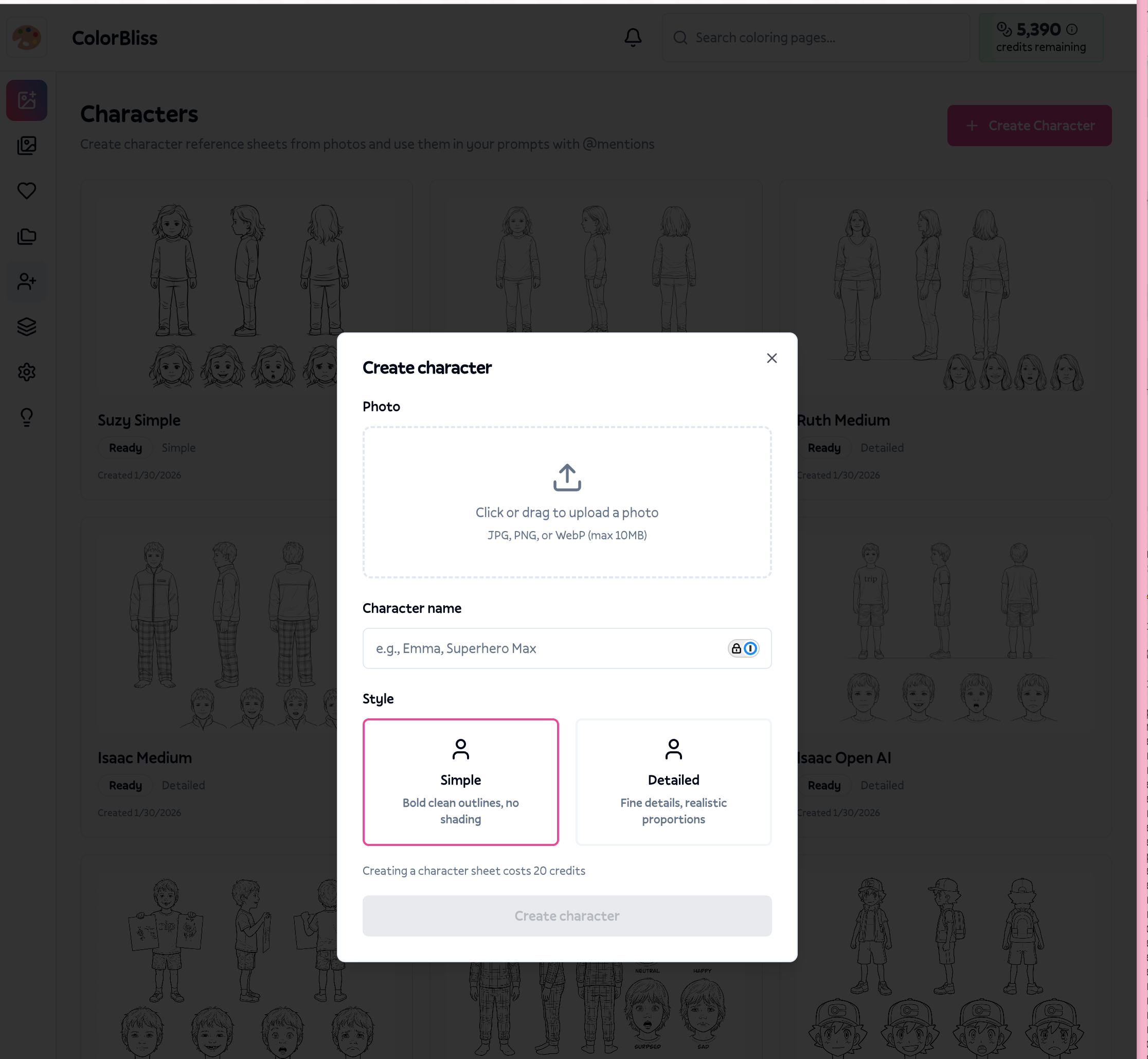
Upload a photo of your character (JPG, PNG, or WebP, up to 10MB)
Name your character so you can find them later
Choose a style - simple (bold outlines, no shading) or detailed (fine details, realistic proportions)
Click Create to submit (costs 10 credits)
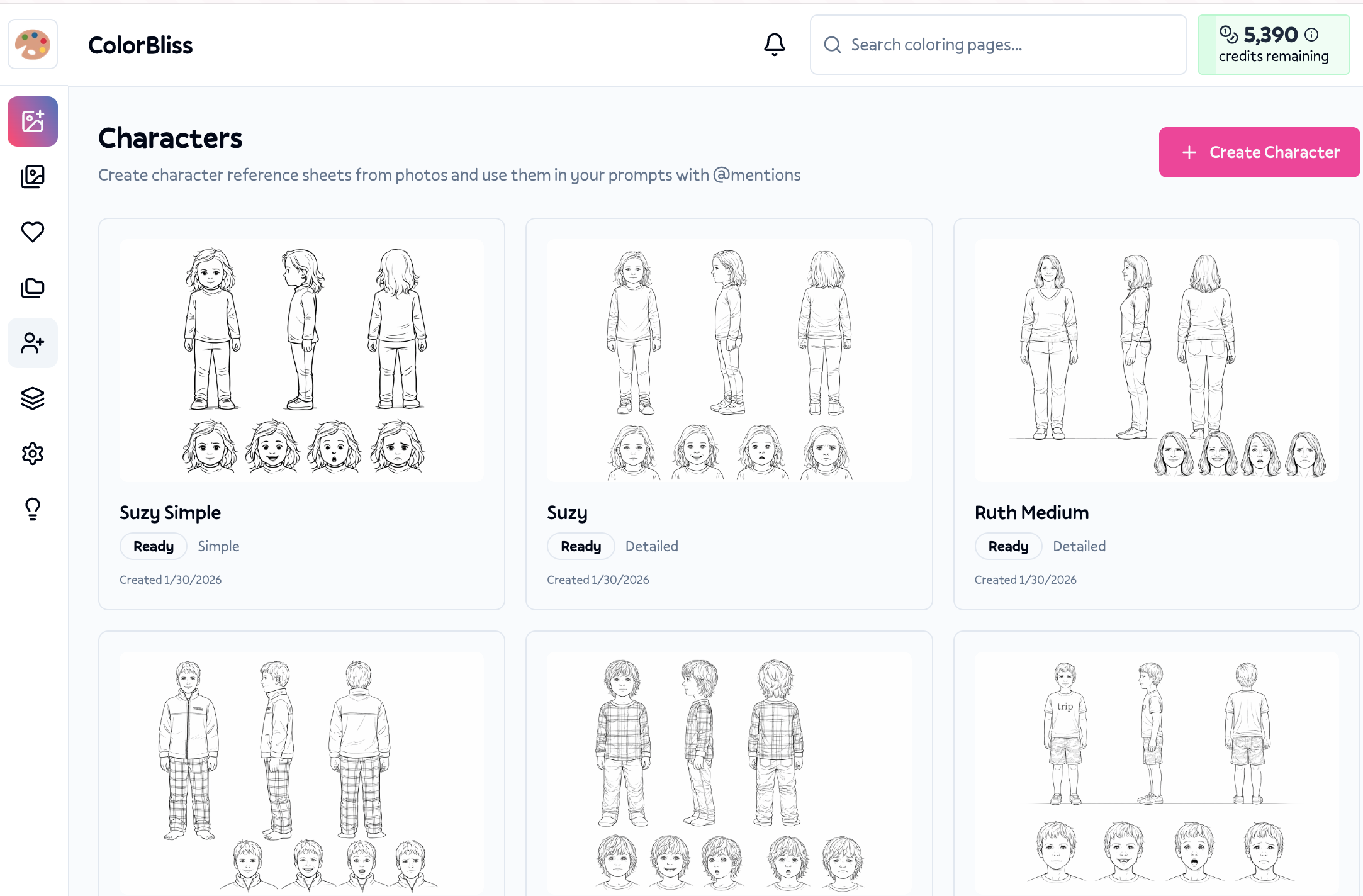
Your character processes in the background. The page updates automatically when it's ready, usually within a minute or two.
How to use characters in prompts
Type @ to open the character menu
Select your character from the dropdown (use arrow keys or click)
Finish your prompt describing what you want them doing
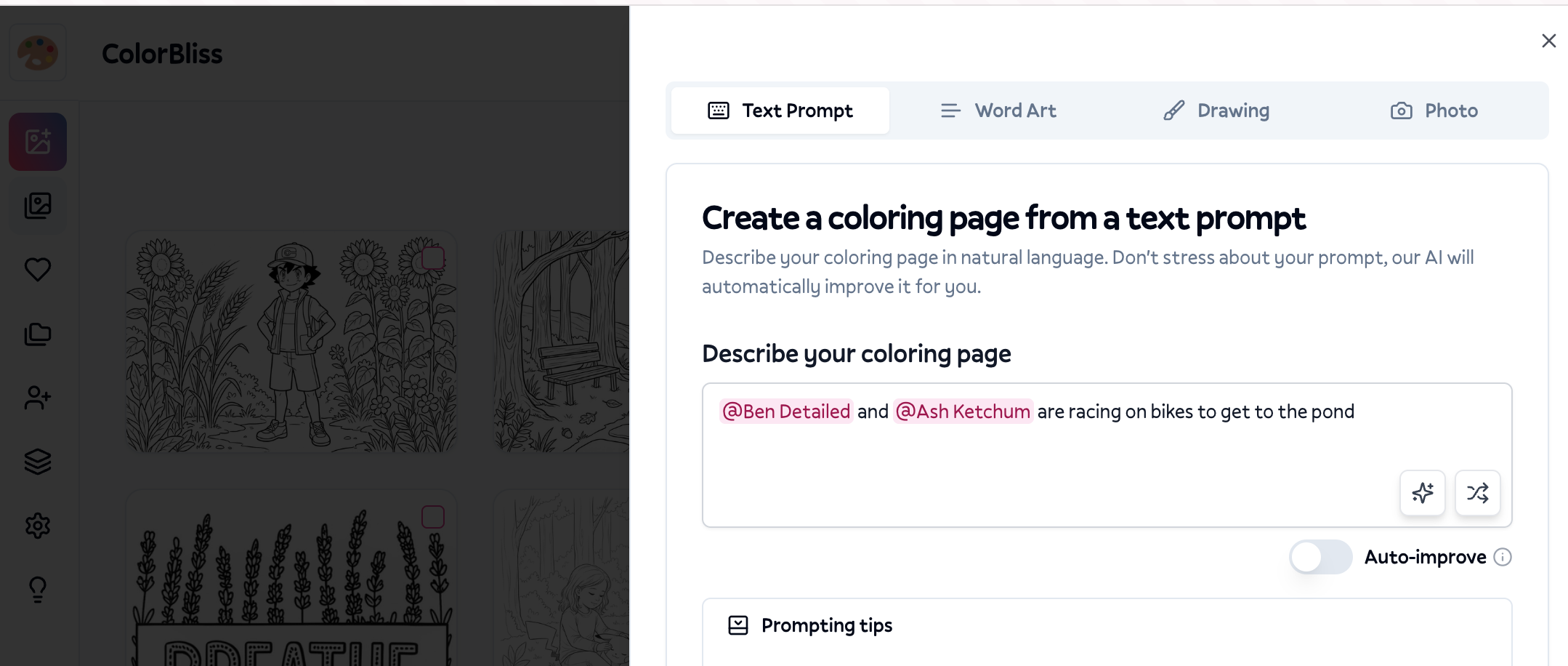
Your prompt might look like: @Emma riding a unicorn through a magical forest
The @ mention tells ColorBliss to use that character's reference sheet when generating the image.
Using multiple characters
You can include multiple characters in one prompt:
@Emma and @Max having a tea party with stuffed animals
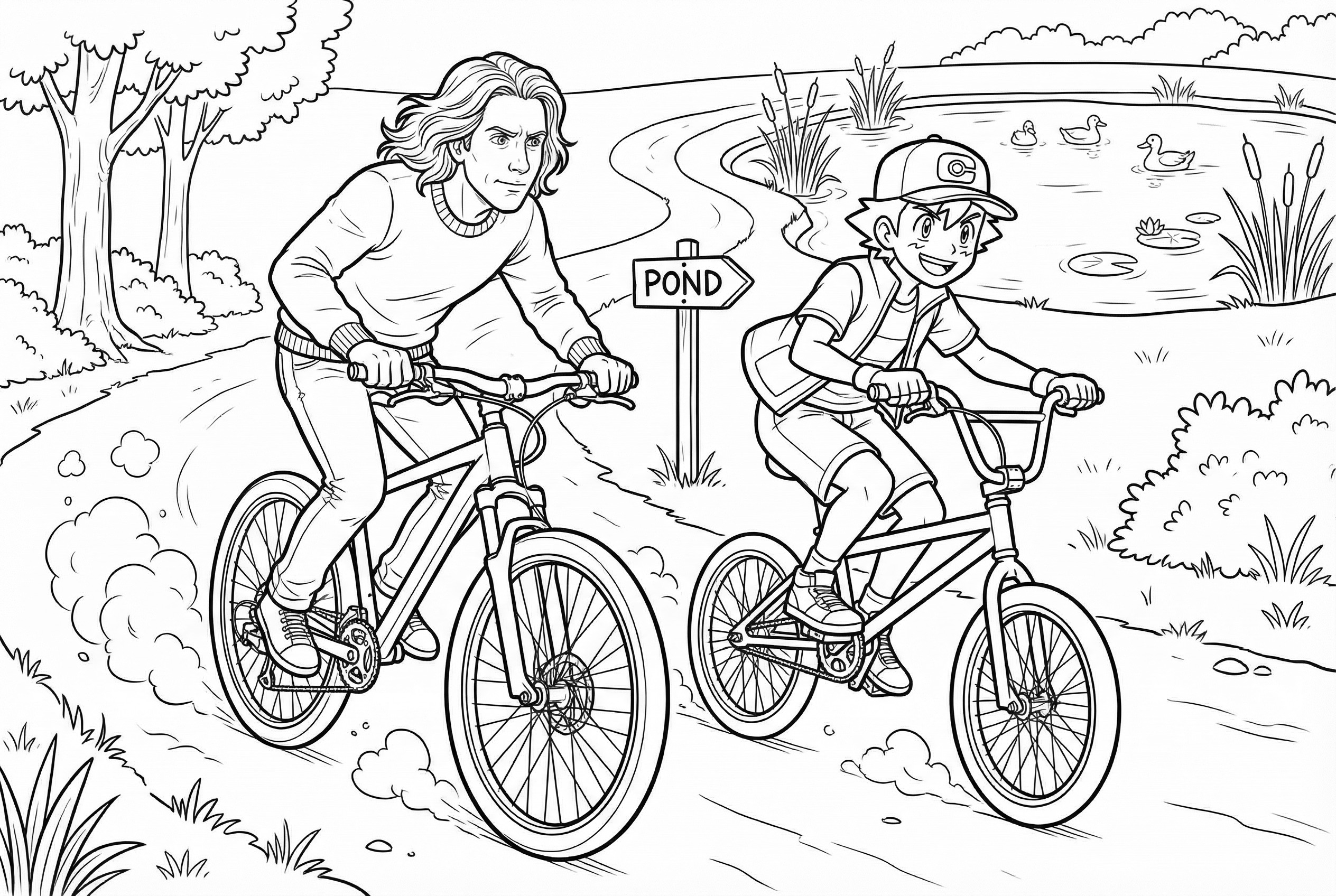
Each character maintains their own appearance. ColorBliss handles the prompt engineering to keep them distinct.
Where it works
Characters page - Create and manage all your characters at Dashboard > Characters
Image generator - Use @ mentions in any text-to-image prompt. The character dropdown appears when you type @
Quality settings - Choose between regular quality (5 credits) or high quality (10 credits) when generating images with characters
Plan availability
Consistent characters is available on Hobby, Artist, Business, and Ultra plans. If you're on a legacy plan or free trial, you'll need to upgrade to access this feature.
What it doesn't do
Characters don't work with photo-to-coloring - This feature is for text-to-image generation only. If you want to turn a photo directly into a coloring page, use the photo converter instead.
Characters aren't editable after creation - If you need changes, create a new character with a different photo.
Characters need to finish processing first - You can't use a character until its status shows as completed. Failed characters show an error message explaining what went wrong.
Tips
Choose clear, well-lit photos - The AI works best when it can see facial features and proportions clearly. Avoid blurry photos or heavy shadows.
Simple style works well for younger kids - Bold outlines and less detail make pages easier to color. Detailed style suits older kids and adults who want more intricate pages.
Name characters distinctively - If you have multiple characters, unique names prevent confusion when typing @ mentions. "Emma" is easier to select than "Character 1."
Use specific scene descriptions - The character reference handles appearance. Your prompt should focus on the action and setting: "playing soccer in a park" rather than describing what the character looks like.
Getting help
If character creation fails or characters don't look right in generated images, email help@colorbliss.com with:
The character name
The original photo you uploaded
Examples of generated images that didn't match expectations
Your account email
Next steps
Head to your Characters page and create your first character. Start with someone easy to recognize, like a family member or pet, and generate a few test pages to see how the consistency works.