

How to download coloring pages from ColorBliss
How to download coloring pages from ColorBliss
Download any coloring page from your library in PNG, PDF, or SVG format. You can grab a single page, select multiple pages for bulk download, or download an entire folder at once.
What you can download
Every coloring page you create is yours to download. The app supports three formats so you can choose the right one for printing, digital coloring, or editing in design software.
PNG - Best for digital coloring apps and quick sharing. High quality raster image that works everywhere.
PDF - Ideal for printing. Maintains quality at any size and prints cleanly on standard paper. Use for single pages or merged coloring books.
SVG - Vector format for editing in software like Adobe Illustrator or Inkscape. Scale without losing quality and modify the line art.
How to download a single page
Find the coloring page in your dashboard, a folder, or your favorites
Click the download icon (downward arrow) in the bottom right corner of the image card
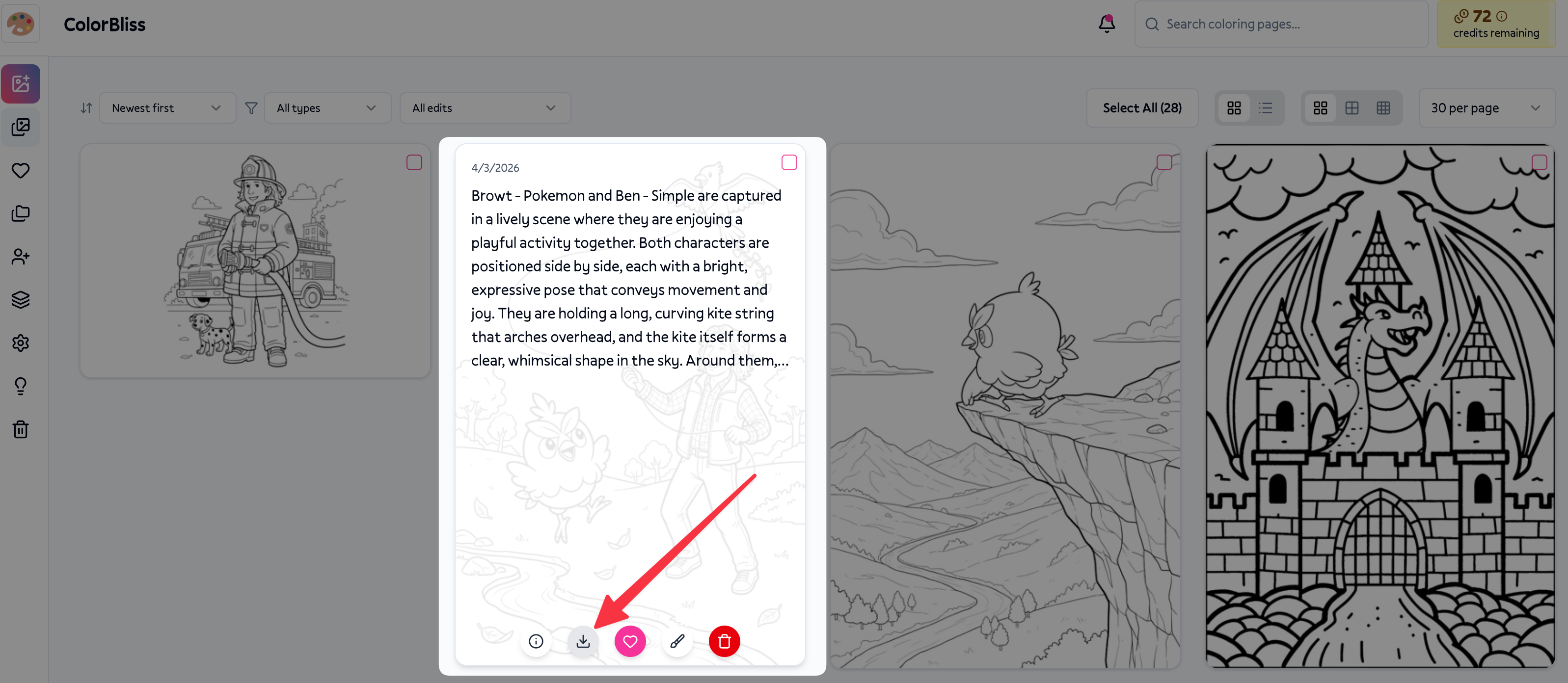
Choose your format from the dropdown: PNG, PDF, or SVG
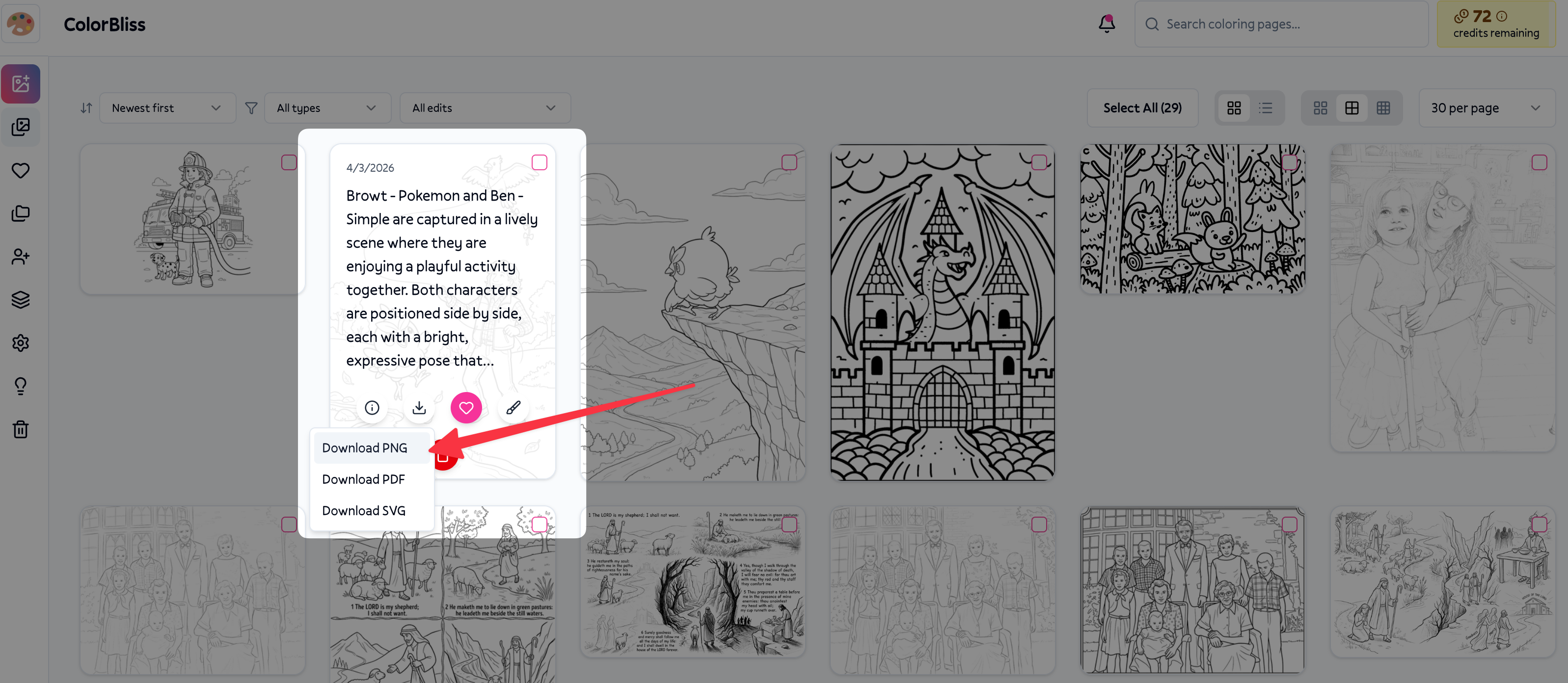
File downloads to your device immediately
The download button appears on every coloring page card throughout the app. No need to open the page or navigate elsewhere.
How to bulk download multiple pages
When you need several pages at once, use the selection and bulk download flow.
Select the pages by clicking the checkbox on each image you want
Open the bulk action bar that appears at the bottom of the screen when you have selections
Click the download button in the bulk bar
Choose your format (PNG, PDF, or SVG)
Wait for the zip - all selected pages download as a single zip file
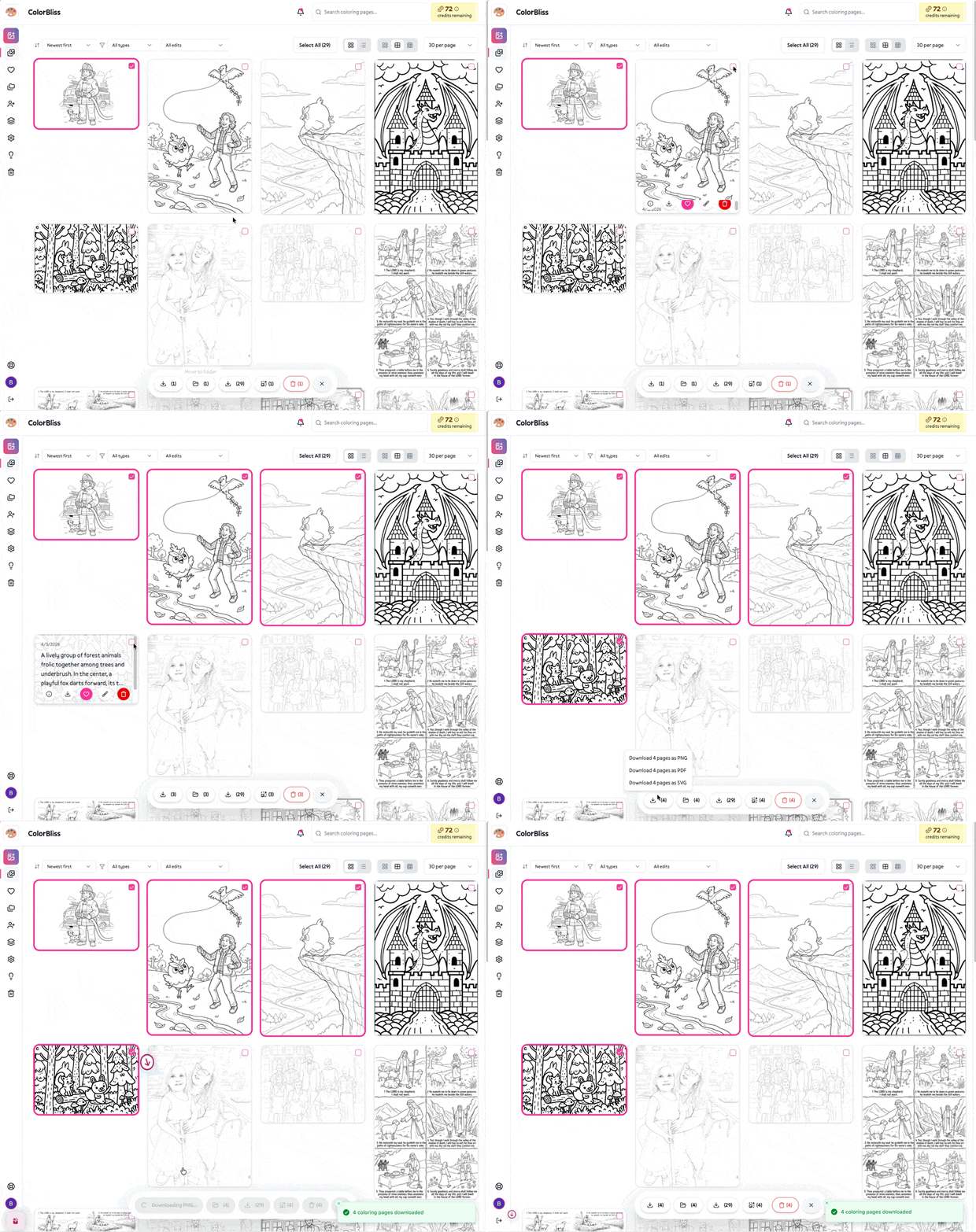
The zip preserves the order of your pages and uses numbered filenames (1-prompt-name.png, 2-prompt-name.png, etc.) so you can keep them organized.
How to download an entire folder
Folders have a dedicated download button that grabs every page in that folder.
Open the folder you want to download
Click the "Download all" button in the folder header
Choose your format - PNG, PDF, or SVG
For PDF - choose "Single PDF (coloring book)" to merge all pages into one file, or "Zip of individual PDFs" for separate files
Check your email - folder downloads are prepared on the server and a download link arrives in 2 to 5 minutes
Folder downloads work best when you have many pages. The merged PDF option creates a ready-to-print coloring book in one file.
Adding a watermark
Artist plan members can add a custom watermark to their downloads. The watermark appears in the bottom right corner of the image.
Enable watermarking:
Go to your profile (click your avatar or name in the sidebar)
Find the Watermark Settings section
Turn on "Enable Watermark"
Enter your watermark text (e.g., your name, website, or business name)
Click Save Changes
Once enabled, watermarks apply to bulk downloads from the dashboard when you select multiple pages and download. Watermarks do not apply to single-page downloads or folder downloads.
Watermarking is an Artist plan feature. If you don't see the option, you're on a different plan.
Where downloads work
You can download from anywhere your coloring pages appear:
Main dashboard - download from your recent creations
Folders - download single pages or use the folder download button for all pages
Favorites - same download options as the main dashboard
Search results - download any page from search
Individual page views - download from detailed or full-screen views
Bulk generate results - completed bulk jobs have a download button for all finished pages (PNG only)
Common patterns
Printing a batch: Select the pages you want, bulk download as PDF, then print from the merged or individual files.
Creating a coloring book: Put pages in a folder, use "Download all" with "Single PDF (coloring book)" to get one print-ready file.
Digital coloring: Download as PNG for use in Procreate, Adobe Fresco, or other apps.
Editing line art: Download as SVG to modify in Illustrator, Inkscape, or similar software.
Branding for clients: Enable watermark with your business name, then bulk download to add your branding to every page.
What downloads don't do
Downloads don't remove pages from your library - they create copies. Your originals stay in ColorBliss.
Folder downloads aren't instant - they're prepared on the server. Expect 2 to 5 minutes before the email link arrives.
Watermarks don't apply everywhere - only to bulk downloads from the dashboard when you select multiple pages. Single downloads and folder downloads use the original images.
SVG doesn't support watermarks - if you need a watermark, use PNG or PDF.
Tips for best results
Use PDF for printing - it scales cleanly and avoids pixelation. Letter or A4 sizing is automatic.
Name your prompts clearly - filenames are derived from your prompt, so descriptive prompts lead to organized downloads.
Check your email for folder downloads - the link may land in spam. Add ColorBliss to your contacts if needed.
Merge PDF for coloring books - when downloading a folder as PDF, choose "Single PDF" to get one continuous file instead of many separate files.
Getting help
If downloads fail or you don't receive the folder download email, contact help@colorbliss.com with:
What you were trying to download (single page, selected pages, or folder)
The format you chose
Any error messages you saw
Whether you received an email (for folder downloads)
Next steps
Download your first page by clicking the download icon on any coloring page card. For multiple pages, select them and use the bulk download bar. Organize pages into folders to make bulk downloads even easier.